I have to load big data files using SSIS or SQL server Import/Export wizard. Most of the time it works fine but if it fails and I have to view the data to debug then it is simply impossible to view the data because most of the text editor cannot open file which too big (size in multiple of GBs). So I have developed small tool which can help to read or view a big file which cannot be opened in normal text editor. This tool can also be use full if you are developing SSIS package to load big file and want to create small sample file from big file during development.
Click here to download the tool.
Features of the tools
- Load big file (no limit on size)
- View data page by page. Page size is configurable.
- Save page in different file.
- Go to any page in file.
- Displays line number across pages.
Limitations.
- It uses Temp directory to store data pages while opening file. So virtually it can occupy similar disk space as the original file.
- It can only read file line by line. So if lines are not separated by {CR}{LF} then it cannot do data paging.
- It can only work with ANSI data.
Read big data file | View big data file | Open big data file | tool to open big file | tool to read big data file | Preview big data file | Get sample data from big data file | Read specific data from big file | View specific data from big file
Showing posts with label SSIS. Show all posts
Showing posts with label SSIS. Show all posts
Monday, 16 December 2013

Friday, 8 March 2013
How to load data from PDF file in SSIS package using script component
I have come across the case where I have to read PDF
document, parse it and write content to database using SSIS. PDF document is
not usual source for any data so there is no component available to read PDF
file from SSIS. I have used iTextSharp library
in Script Component to read the PDF file from SSIS package. I also found very good link where I found good
example on how to use iTextsharp library.
Using iTextsharp library it is very easy to process PDF document. In my case it was simple case of reading PDF document page by page and parses the content using custom logic. You can do much more than just reading PDF document using this library.
To read data from PDF file and write to database, I have
used Script Component as data source, which reads the PDF document and return
result and output record of Script Component. The simply used OLE DB
destination to write it to database. You might be aware that any third party
dlls can be used in SSIS Script component by referencing it. But to add it as
reference and use it in script component you have to register dll in GAC. It
can be referenced without adding it but dll might not be available on the production
environment at the same location. So better add them to GAC. In my case I was
not allowed to add dll to production server directly, so I used .Net reflection
to load the dll dynamically and added dll location as configuration in SSIS
package.
Below is my code
//Below two variable are used to pass ITextSharp
dll location and PDF file path.
//Which ultimately supplied from dts config file.String configITextPath = Variables.itextdllfilepath;
String configSourceDataFile = Variables.filepath;
//Load ITextSharp library
Assembly assembly = Assembly.LoadFrom(configITextPath);
//Get PdfReader object and create its instance
Type readerType = assembly.GetType("iTextSharp.text.pdf.PdfReader");object reader = Activator.CreateInstance(readerType, new object[] { configSourceDataFile });
Type extractorType = assembly.GetType("iTextSharp.text.pdf.parser.PdfTextExtractor");
Type extractionStrategyType = assembly.GetType("iTextSharp.text.pdf.parser.LocationTextExtractionStrategy");
object
extractionStrategy = Activator.CreateInstance(extractionStrategyType);
//Get number of pages in PDF document
Int32 pages = (Int32)reader.GetType().GetProperty("NumberOfPages").GetValue(reader, null);
//Read PDF document page by page and process it and generate Output rows
for script component.
String pageText;List<PepRecord> pepRecords = new List<PepRecord>();
for (int page = configStartPageNumber; page <= pages; page++)
{
reader = Activator.CreateInstance(readerType, new object[] { configSourceDataFile });
extractionStrategy = Activator.CreateInstance(extractionStrategyType);
pageText = (String)extractorType.GetMethods()[0].Invoke(reader, new Object[] { reader, page, extractionStrategy });
//code to process PDF file content and create Output rows for script component
}
I know better way to do this is to add dll in GAC and refer
from there. But in my case I have to quickly found the solution to process few
PDF document suing SSIS package, so I have used reflection to load it.
Thursday, 7 March 2013
How to use a Script Component as a Data Source in SSIS
Script component in SSIS can be used as Data Source, Data Transformation and Data Destination. Here is small tutorial on how to use Script Component as data source in SSIS package. See below step by step guide to add script component as data source in SSIS data flow task.
1. Add Data flow task to Control Flow of your package.
2. Right Click on Data Flow Task and click on Edit.

3. Add Script Component to your Data Flow. It will popup window to ask to set the role of script task in data flow (see below image).

4. Select Source click Ok.
5. Now right click on Script Component and click on Edit.
6. Click on Inputs and Oputputs. Add few columns to default output (Output 0). You can change name of the output but I kept it as default for this example. If you want script task to return multiple data tables, then you can add more outputs and their columns.
7. Now Add few columns to your Output. Here I have added 3 columns to Output 0 named Column, Column 1 and Column 2. You can change name and data type of the column from right side property window. I have kept the default name and default type (Integer) for this example.

8. Click on Script tab and click on Edit Script… button to add the rows to your output.

9. Edit Script will open new visual studio project and opens main.cs file (for C#, it will be main.cv for VB). This file contails ScriptMain class, which has 3 predefined methods as shown below.
public override void PreExecute()
This method is used to perform any prexeuction task like opening connection, initialization valiables etc.
public override void PostExecute()
This method is used to perform any posexecution task like closing connection, dispising objects etc. This method also be used to set ReadWrite variable defined in your script.
public override void CreateNewOutputRows()
This method is used to actually returns the rows to your ourput. See below example where I have added 10 rows to our Output 0
public override void PreExecute()
{
base.PreExecute();
/*
Add your code here for preprocessing or remove if not needed
*/
}
public override void PostExecute()
{
base.PostExecute();
/*
Add your code here for postprocessing or remove if not needed
You can set read/write variables here, for example:
Variables.MyIntVar = 100
*/
}
public override void CreateNewOutputRows()
{
/*
Add rows by calling the AddRow method on the member variable named "<Output Name>Buffer".
For example, call MyOutputBuffer.AddRow() if your output was named "MyOutput".
*/
for (int i = 0; i < 10; i++)
{
Output0Buffer.AddRow();
Output0Buffer.Column = (i + 1);
Output0Buffer.Column1 = (i + 1) * 10;
Output0Buffer.Column2 = (i + 1) * 100;
}
}
10.Add sample code as shown above and close visual studio project for script component. Click on Script Component Edit dialog window. Now your script task is ready to use as Data Flow Source. Start using it as normal source component.
Wednesday, 3 August 2011
SSIS Tutorials : Debugging Data Flow
BIDS tool has option to debug the Data Flow control. In normal cases you can see row count while you execute the package in debug mode. And you can see the execution details in progress (Execution Result) tab of the package designer. Apart from this you can see data which is being manipulated in you data task using data viewer. Let's see how to use data viewer in Data Flow task.
Step 1: Define your Data Flow Task. See below image for sample data fow task.

Step 2: Right Click on Data Flow Path editor as show in below image. And the click on Edit or Data Viewer.


Step 3: Click in on Add as show in above image. to add data viewer. It will open sceen as shown below to select the type of data viewer you want. For Grid view just click on ok and Ok. It will add one data viewer to your data flow.

Step 4: After adding data viewer you will see small viewer icon along with data flow path.
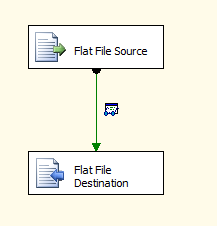

This was short explanation to use data viewer to debug the Data Flow task.
Data viewer can display data in different format. It can show data in grid, histogram, scatter plot and column chart.
Data Grid : It allows column selection, which can later appear as column in tabular data display in debug mode.
Histogram : It only works for numeric column and shows data distribution as histogram.
Scatter plot : This one also only works with numeric data. You can select numberic data column for different axis for the graph.
Chart format: This chart show the occurrence count of discrete values in the selected column.
MS SQL Server Integration Services | SSIS | SSIS Tutorials | Learn SSIS | Beginers Guid to SSIS | Microfot BI Tutorials | Learning SSIS | How to debug package | Debugging Packages | Debugging Data Flow | How to Debug SSIS Package
Step 1: Define your Data Flow Task. See below image for sample data fow task.

Step 2: Right Click on Data Flow Path editor as show in below image. And the click on Edit or Data Viewer.


Step 3: Click in on Add as show in above image. to add data viewer. It will open sceen as shown below to select the type of data viewer you want. For Grid view just click on ok and Ok. It will add one data viewer to your data flow.

Step 4: After adding data viewer you will see small viewer icon along with data flow path.
Step 5: Now run your package to see the data viewer in action. Once you run the package, it will stop at data viewer and will show the records. You will see tree buttons on data viewer. Play, Detach, Copy Data. Click on play to continue exectution with data viewer attached to data flow path. Click on Detach to detach data viewer from execution flow. and Copy Data to copy data in clipboard.

This was short explanation to use data viewer to debug the Data Flow task.
Data viewer can display data in different format. It can show data in grid, histogram, scatter plot and column chart.
Data Grid : It allows column selection, which can later appear as column in tabular data display in debug mode.
Histogram : It only works for numeric column and shows data distribution as histogram.
Scatter plot : This one also only works with numeric data. You can select numberic data column for different axis for the graph.
Chart format: This chart show the occurrence count of discrete values in the selected column.
MS SQL Server Integration Services | SSIS | SSIS Tutorials | Learn SSIS | Beginers Guid to SSIS | Microfot BI Tutorials | Learning SSIS | How to debug package | Debugging Packages | Debugging Data Flow | How to Debug SSIS Package
Saturday, 30 July 2011
SSIS Tutorials : How to Debug SSIS Package
Debugging SSIS package is possible using Business Intelligence Development Studio. There are way of debugging the different component of package. Data Flow, Control Flow and Script Task can be debugged using different technique.
Debugging Control Flow: Control flow can be debugged using breakpoints, debugging windows and progress reporting.
Debugging Data Flow: Data Flow can be debugged using data viewer and progress reporting.
Debugging Script Task: Script Task can be debugged using break point in script code. It is same as debugging any .Net code debug.
Apart from above debugging methods you can use different event to write log or send message to know the status of the package execution. Above techniques can only be used while you are executing package using Business Intelligence Development Studio. But if you want to do it on production server (means package which are running out side of development studio), then only way is to generate proper log of you package using package event or adding extra task item in your control flow or data flow.
Next we will see how to use above debugging technique in details in coming blogs.
MS SQL Server Integration Services | SSIS | SSIS Tutorials | Learn SSIS | Beginers Guid to SSIS | Microfot BI Tutorials | Learning SSIS | How to debug package | Debugging Packages
Debugging Control Flow: Control flow can be debugged using breakpoints, debugging windows and progress reporting.
Debugging Data Flow: Data Flow can be debugged using data viewer and progress reporting.
Debugging Script Task: Script Task can be debugged using break point in script code. It is same as debugging any .Net code debug.
Apart from above debugging methods you can use different event to write log or send message to know the status of the package execution. Above techniques can only be used while you are executing package using Business Intelligence Development Studio. But if you want to do it on production server (means package which are running out side of development studio), then only way is to generate proper log of you package using package event or adding extra task item in your control flow or data flow.
Next we will see how to use above debugging technique in details in coming blogs.
MS SQL Server Integration Services | SSIS | SSIS Tutorials | Learn SSIS | Beginers Guid to SSIS | Microfot BI Tutorials | Learning SSIS | How to debug package | Debugging Packages
Friday, 29 July 2011
SSIS Tutorials : First Package
Start SQL Server Business Intelligence Development Studio
BNow your package is ready to run. You run your package using F5 button or using Start Debugging menu item. As this package does not contain anything but still you can run it. Now let see the main components of Package designer.
Any package designer has below main section.
Control Flow: This section contains the main exection work flow of the package. You can define you package execution steps and sequences here. It contains Tasks and Constraints.
Data Flow: This section contains details of Data Flow task like Data Flow Source, Data Flow Transformationa and Data Flow Destination. In short you can read data from source system, apply some trasformation and write back to destination system.
Event Handlers: This section is used to defined the task to be perrformed in case of error or some event like Task Start, Task End, Variable Chaned etc.
Package Explorer: Package explorer gives you the opportunity to see pakage as tree view. It shows all details about package which you see in all other sections.
Execution Result or Progress : This section only appers if you run the packages at least once. Progress section appears while package is running and it changed to Execution Rerult when you stop exection of the package. This section show the details and status of each Task execution.
Apart from above section Package has some more section which are important.
Connection Managers: This section appears only while you are in Control Flow or Event Handler Section. This section shows all connection available to package.
Vaiables: This section shows variable defined at package level or Task level. You can see veriable by Clicking on Variables menu on context menu of Control Flow designer or any Control Flow Item. You can also see variable in Package Explorer section under Variables node.
Aprat from above you can see Property window and Toolbox as you see with any Visual Studio application.
Next we will see how to use different section and details about different Control Flow Items and Data Flow item.
MS SQL Server Integration Services | SSIS | SSIS Tutorials | Learn SSIS | Beginers Guid to SSIS | Microfot BI Tutorials | Learning SSIS | SQL Server Integration Service (SSIS) Package design
- Create New Project of type Integration Services Project
- You will see default package designer opened as shown below.


BNow your package is ready to run. You run your package using F5 button or using Start Debugging menu item. As this package does not contain anything but still you can run it. Now let see the main components of Package designer.
Any package designer has below main section.
- Control Flow
- Data Flow
- Event Handlers
- Package Explorer
- Execution Result or Progress : (This will only apper if you run the package at least once.
Control Flow: This section contains the main exection work flow of the package. You can define you package execution steps and sequences here. It contains Tasks and Constraints.
Data Flow: This section contains details of Data Flow task like Data Flow Source, Data Flow Transformationa and Data Flow Destination. In short you can read data from source system, apply some trasformation and write back to destination system.
Event Handlers: This section is used to defined the task to be perrformed in case of error or some event like Task Start, Task End, Variable Chaned etc.
Package Explorer: Package explorer gives you the opportunity to see pakage as tree view. It shows all details about package which you see in all other sections.
Execution Result or Progress : This section only appers if you run the packages at least once. Progress section appears while package is running and it changed to Execution Rerult when you stop exection of the package. This section show the details and status of each Task execution.
Apart from above section Package has some more section which are important.
Connection Managers: This section appears only while you are in Control Flow or Event Handler Section. This section shows all connection available to package.
Vaiables: This section shows variable defined at package level or Task level. You can see veriable by Clicking on Variables menu on context menu of Control Flow designer or any Control Flow Item. You can also see variable in Package Explorer section under Variables node.
Aprat from above you can see Property window and Toolbox as you see with any Visual Studio application.
Next we will see how to use different section and details about different Control Flow Items and Data Flow item.
MS SQL Server Integration Services | SSIS | SSIS Tutorials | Learn SSIS | Beginers Guid to SSIS | Microfot BI Tutorials | Learning SSIS | SQL Server Integration Service (SSIS) Package design
Subscribe to:
Posts (Atom)